
Breadcrumbs - Usage
Breadcrumbs show users their current location relative to the information architecture and enable them to quickly move up to a parent level or previous step.
Usage guidelines
Breadcrumbs are effective in products that have a large amount of content organised in a hierarchy of more than two levels. They use little space but still provide context for the user’s place in the navigation hierarchy.
Breadcrumbs should always be treated as secondary and should never entirely replace the primary navigation.
Behavior
Interactions
All pages in the breadcrumb component should be interactive (except the current page) and link to their respective pages.
Mouse
Users can trigger an item by clicking on a breadcrumb page link. The separators between page links are not interactive.
Keyboard
Users can navigate between breadcrumb links by pressing tab and shift-tab. Users can trigger a breadcrumb link by pressing Enter while the link has focus.
Placement
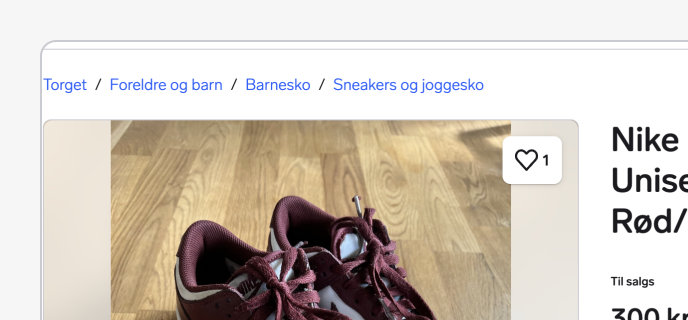
Breadcrumbs are placed in the top left portion of the page. They sit underneath the header and navigation, but above the page title and content.
Desktop example
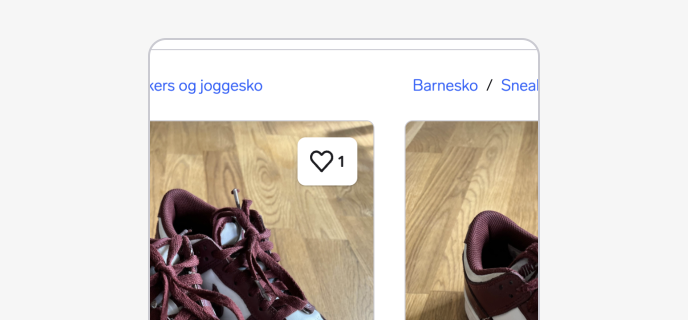
Mobile example
Content guidelines
Main elements
Page link
- Each page link should be short and clearly reflect the location or entity it links to.
- Start with the highest level parent page and move deeper into the information architecture as the breadcrumb trail progresses.
- If the current page is included in a breadcrumb trail, it is always the last text listed and is not an interactive link.
- Each breadcrumb path is separated by a “/”, which should use the same font as the other breadcrumbs, but using a default text style (not an interactive link style).
Overflow content
The breadcrumb component should always aim to display as many crumbs (items) as possible to give users a clear view of their current position within the marketplace's hierarchy. However, when space is limited, the component should adapt:
Reduce number of crumbs on smaller viewports
When the screen isn’t wide enough to display the full breadcrumb path, we only show the last two crumbs (items) in the breadcrumb trail. This helps the user get a better understanding of where they are within the site structure, and allows them the opportunity to go one level up within the site structure to explore more.
Text truncation for long item labels
If the breadcrumb item labels are too long to fit on smaller screens, we:
- Use truncation to shorten the amount of visible text.
- When truncating text, use an ellipsis (...) at the end of the last label.
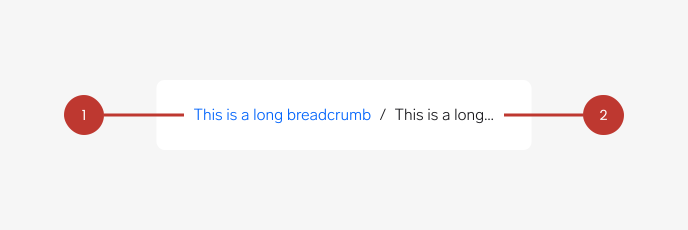
1. Not truncated - the first path does not get truncated.
2. Truncated - the last path does gets truncated.
Questions?
Feel free to ask any questions on usage in the Warp DS Slack channel: #warp-design-system