
Page indicator - Usage
A page indicator shows the total amount of pages (or images) and the current page using dots.
AndroidreleasedElementsreleasediOSreleasedReact 19released
General
Page indicators are usually used in image carousels, and supported by carousel controls that give the user power to navigate through the carousel of images.
Use page indicators when:
- You have one or more images, or pages, you want to show, but don’t have space to show them all at once.
- When you want to clearly illustrate how many images, or pages, are available.
When using page indicators:
- The number of dots varies depending on the number of pages.
- Although there is no maximum limit to the amount of dots you can use, don’t display too many.
- The aim of page indicators is to give users’ a quick overview of how many pages, or images, there are to be viewed, so using more than 8 dots is too hard to count at a glance.
Behavior
- Individual indicator dots have two states: active and inactive
- Should only show one active dot at a time
- Should always be centred-aligned at the bottom of the view or window within their parent container (eg. 24px padding between the page indicator and the bottom of the parent container).
- Should not be interactive, meaning they cannot be clicked or used as a shortcut to specific pages/images (so no focus state is necessary).
- Have varying number of dots depending on the number of pages.
- Center a page control at the bottom of the view or window. To ensure people always know where to find a page control, centre it horizontally and position it near the bottom of the view.
Design Guidelines
See Figma: Warp - Components / Page indicator
Placement
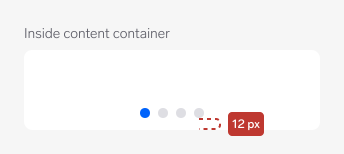
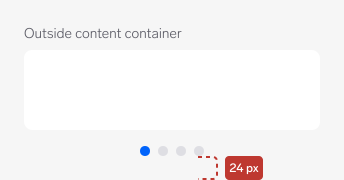
You can place the page indicator inside or outside the content. We recommend you leave a margin of 16px when placing it outside the image and 12px when using it inside. You can adjust this margin if necessary.
The page indicator should always be horizontally centred within its parent container.
The page indicator should always be horizontally centred within its parent container.
Resizing
The width is automatically adjusted according to the numbers of dots. The height of the component is fixed and should not be changed.
Questions?
Feel free to ask any questions on usage in the Warp DS Slack channel: #warp-design-system