
Range slider - Usage
Range sliders provide a visual indication of a selected interval within a defined range by moving two handles along a horizontal track to set both a minimum and maximum value.
Guidelines
- Range sliders are best suited for when people need to quickly select an interval within a designated range. They offer an intuitive way to adjust settings like volume, price filters, or relative distances.
- Use step intervals (integers) when precision input is required.
- Always use a tooltip to show the selected value.
- Ensure the Range slider is wide enough to be easily operated on touch devices.
- Avoid disabling sliders. They provide poor accessibility feedback, and it’s unclear why the option is unavailable.
When to use
- Use to allow users to see their selection relative to a minimum and maximum.
- Use to provide a wide range of options within a compact space.
- Use when users should see results of their selection in real-time.
When not to use
- Don’t use sliders for small ranges (e.g., 1-10). Use a Checkbox or Stepper instead (Note: Steppers are not yet available in Warp; please reach out if your use case requires one).
- Don’t use for complex input values that aren’t numeric (e.g., categories or words). Use a Select, Checkbox, Radio, Pill, or Text field instead.
- Don’t use when only one value needs to be defined. Use the Slider instead.
Behaviour
Standardise the Range slider logic across our apps to build user trust. When interaction rules remain consistent, users can focus on making selections rather than relearning how the component works.
Avoid duplicating information: To reduce cognitive load, ensure each element of the slider communicates a unique piece of data. Avoid repeating the same information across labels, ticks, text fields, and tooltips. Streamlining these elements prevents "visual noise" and allows users to scan the interface faster.
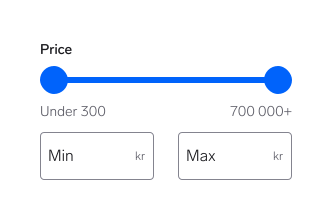
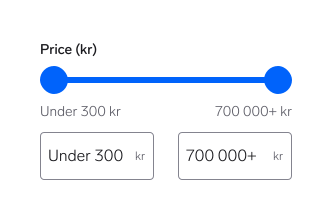
Review the behaviour guidelines for each slider element below.
Range labels
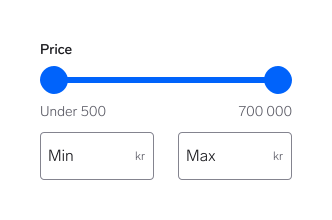
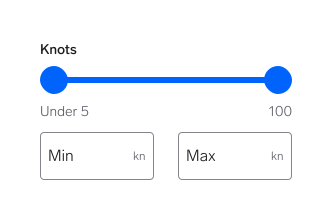
- Range labels are placed under the slider. They are a visual representation of the available range, not the selected values.
- Labels are indicative rather than precise and do not require exact alignment with the slider handles.
- As a general rule, don’t add units (e.g., kr, km, hk, etc.) to the min and max range labels.
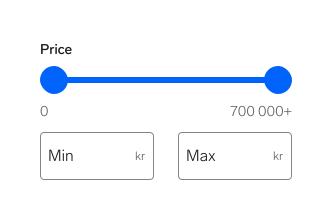
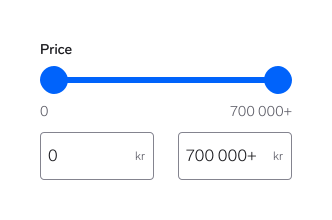
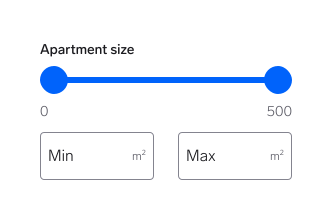
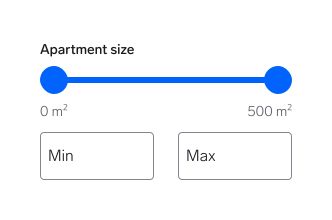
Absolute ranges
Use when the lower and upper limits are known and fixed.
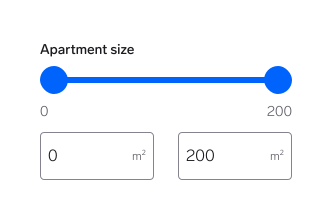
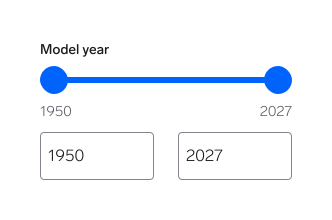
Open-ended ranges
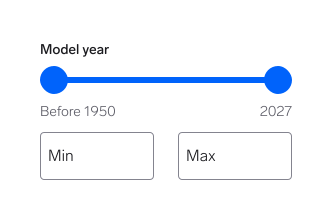
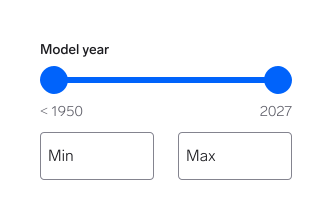
Open minimum
When there is no concrete lower limit in the range.
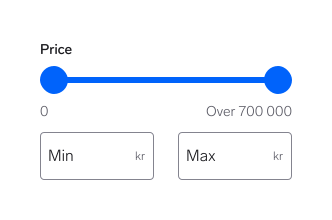
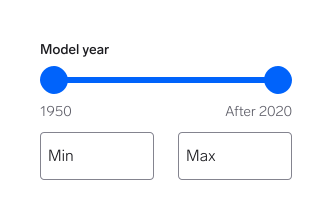
Open maximum
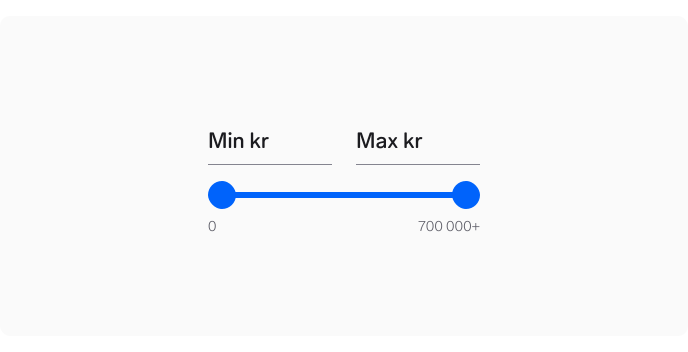
When there is no concrete upper limit in the range.
Alternative (to be tested): Use words as “Over” or “After” to indicate an open-ended maximum.
⚠️ Important
This alternative isn’t verified. Help us validate it for improved range clarity. If you have a relevant use case, please reach out to share your findings.
Track
Continuous intervals
- Use continuous intervals when users need fine-grained control or when exact values are not critical.
- Handle movement should be smooth, with values updating continuously as the user drags.
<w-slider label="Continuous interval" min="0" max="100">
  <w-slider-thumb slot="from" aria-label="From" name="from"></w-slider-thumb>
  <w-slider-thumb slot="to" aria-label="To" name="to"></w-slider-thumb>
</w-slider>
Step intervals
- Use step intervals (integers) when values must align to predefined increments or discrete options.
- Handle movement should snap to each step, updating the value only when a step is reached.
- On native apps, trigger a light haptic “thump” as the handles snap to each increment.
- Step intervals must be clearly communicated in the tooltip and in the input value to avoid ambiguity.
- In open-ended ranges, step intervals apply only to concrete values. Relative labels (e.g., Before 1950) represent a boundary state, not a step.
- Steps should reflect how precise users need to be: small steps for exact values (e.g., Year), larger steps for fast exploration (e.g., Price) — never more precision than users can realistically control. Focus on speed and touch usability for exploration.
<w-slider label="Step interval" min="0" max="100" step="10">
  <w-slider-thumb slot="from" aria-label="From" name="from"></w-slider-thumb>
  <w-slider-thumb slot="to" aria-label="To" name="to"></w-slider-thumb>
</w-slider>
Text fields
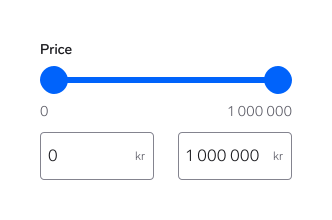
Range sliders must be paired with two text fields, which serve as the canonical sources for the selected values. This setup is required to ensure the component remains fully accessible.
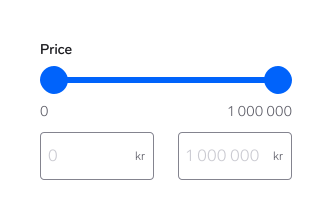
The text fields reflect the values selected by the handles; they aren’t placeholders, even in their default position. Any change made via dragging, keyboard interaction, or manual input must remain synchronised across the text fields, handles, and tooltips.
The text fields never enter an undefined or empty state.
Interactino on open-ended ranges
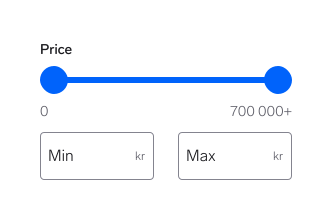
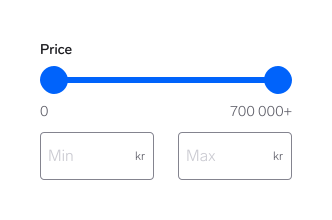
On open-ended ranges, both text fields must display the actual values of the range limits; they are not placeholders.
- “Min” represents the available minimum value.
- “Max” represents the available maximum value.
Accessibility notes
- Min and Max are treated as actual input values, not placeholders.
- Screen readers announce the current state correctly.
- The text field never enters an undefined or empty state.
Manual entry
Manual entry follows a “strict-value” pattern to ensure the slider always reflects an active selection. This maintains a stable visual state during focus and prevents the component from ever falling into an ‘empty’ or undefined state.
When focusing on a text field:
The text field continues to display the text value “Min” or “Max” until the user actively types another value or moves the handles.
When typing a new value:
- Handle must update with the text field. “Min” or “Max” is replaced by the entered value.
- Delay showing validation errors until the user has finished typing or the text field loses focus. This prevents "premature errors" (e.g., error for "20" when the user is in the middle of typing "200" for a 30–300 range).
If the user clears the entry:
- The field automatically reverts to the corresponding boundary value (minimum or maximum).
- The handle returns to the start or end of the track accordingly.
- Apply the same grace period before validating to avoid flashing error states while the user is resetting the value.
<w-slider label="Apartment size" min="50" max="200" suffix="m²" data-testid="sqm" open-ended>
  <w-slider-thumb
    slot="from"
    aria-label="From square meters"
    name="from"
  ></w-slider-thumb>
  <w-slider-thumb slot="to" aria-label="To square meters" name="to"></w-slider-thumb>
</w-slider>
<script>
  let sqmNumberFormatter = new Intl.NumberFormat("no", {
    maximumFractionDigits: 0,
  }).format;
  let sqmSlider = document.querySelector('w-slider[data-testid="sqm"]');
  sqmSlider.labelFormatter = (slot) => {
    if (slot === "from") return "0";
    return sqmNumberFormatter("200") + "+";
  };
  sqmSlider.tooltipFormatter = function (value, slot) {
    if (slot === "from" && value === "") {
      return "Min";
    }
    if (slot === "to" && value === "") {
      return "Max";
    }
    return sqmNumberFormatter(value);
  };
  sqmSlider.valueFormatter = function (value, slot) {
    if (slot === "from" && value === "") {
      return "Min";
    }
    if (slot === "to" && value === "") {
      return "Max";
    }
    return sqmNumberFormatter(value);
  };
</script>
Suffixes
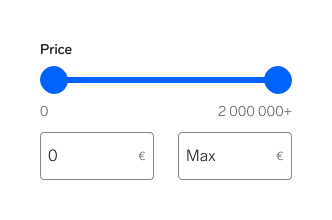
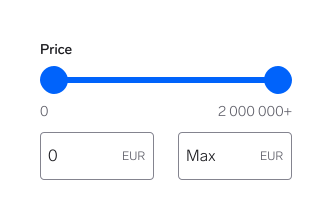
Suffixes should provide essential clarity, not visual decoration. Use them only to clarify ambiguous values and avoid adding them to obvious contexts, as unnecessary suffixes increase visual noise and cognitive load.
Follow these guidelines to maintain a clean and consistent interface across all slider components.
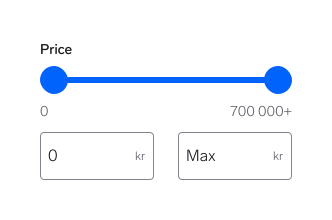
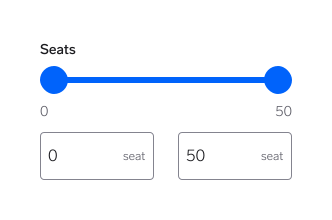
Suffixes should provide essential clarity, not visual decoration. Follow the following guidelines to maintain consistent and clean interfaces.
Currency
Measurement units
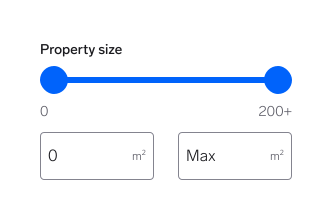
Always use standard measurement units when displaying values such as distance, volume, weight, power, etc.
- 120 km
- 75 m²
- 3.5 kg
Years
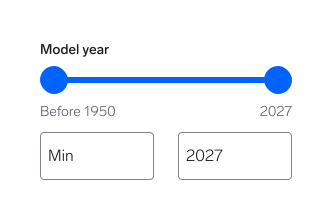
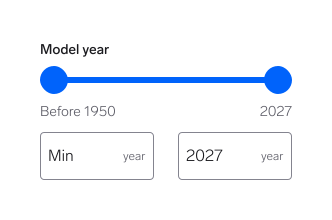
Don’t use suffixes for years, as the four-digit format and slider’s context provide sufficient clarity.
Learn more about Astro’s Style and mechanics for the different Vend languages and markets.
Tooltip
The tooltip provides contextual feedback during interaction and helps users understand both:
- The current selected value, and
- The range semantics of the slider.
The tooltip is an ephemeral, supporting element and must not introduce new information or act as the source of truth. Its content must be dynamic, context-aware, and non-redundant.
When the tooltip is shown
Tooltip content
Current selected value (default)
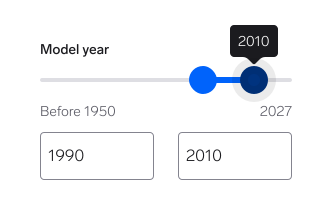
While dragging, the tooltip displays the real-time numeric value of the active handle.
Relative minimum
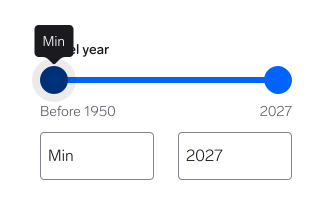
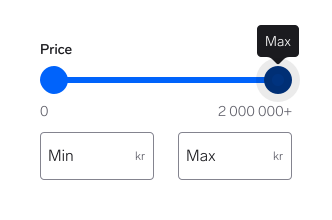
For open-ended ranges, the tooltip must display “Min” once the handle reaches the lower threshold. When moving away from the minimum, the tooltip immediately displays the first concrete value.
Relative maximum
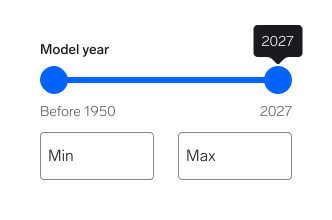
For open-ended ranges, the tooltip must display “Max” once the handle reaches the upper threshold. When moving away from the maximum, the tooltip immediately displays the first concrete value.
Unit
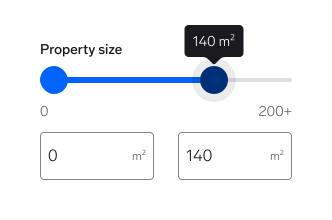
If the text fields use suffixes, the tooltip must mirror the exact suffix and formatting for consistency.
Accessibility note
Including units in the tooltip ensures the value is fully understandable when announced by screen readers.
Tooltip behaviour while dragging
- The tooltip updates continuously as the handle is moved.
- The displayed value reflects the exact current selection in real-time.
- Only the active handle displays a tooltip to maintain focus.
Why this matters
- Gives users a complete picture at the moment of interaction, even when fields are temporarily obscured by the user’s thumbs on mobile.
- Reduces ambiguity in open-ended or relative ranges.
- Improves keyboard and screen reader accessibility.
- Prevents misinterpretation of slider limits.
- Aligns visual and semantic feedback.
Native platforms (iOS & Android)
⚠️ Important
The native experience is not yet fully aligned with the guidelines defined in this documentation.This section describes the current behaviour and provides interim guidance until the native components are revisited.
Current implementations may differ from the target behaviour and will be refined over time.
The native Range slider implementation on iOS and Android currently follows platform-specific patterns and existing product decisions.
Recommendation for native
- Use the Warp Range slider component standalone (label and text fields not visible).
- Use native text fields for manual value entry to ensure platform-standard keyboard behaviour and accessibility.
- The component is a combination (custom component), not a single native control.
- Use native haptic APIs (e.g., UISelectionFeedbackGenerator on iOS or LocalHapticFeedback on Android) to provide a tactile "click" as the handle snaps to increments or reaches boundaries.
- The business and product logic of the component must be defined by product teams, not the design system.
Questions?
Feel free to ask any questions on usage in the Warp DS Slack channel: #warp-design-system