
Date picker - Usage
A date picker allows the user to select a specific calendar date.
Behavior
- The date picker popover is bound to a text field. The field is split into three editable segments: date, month, year.
- Users can type a date manually into the input, or open the date picker popover by interacting with the text field (on click/tap) or the calendar icon.
Guidelines
- Our recommendation is to use the date picker in its default form (a raised popover), but if you need to create an inline version, please bare in mind that that has more UX requirements (eg, a confirmation button) that you need to fix yourself.
- The Calendar icon button isn’t an accessibility requirement but we recommend displaying it so that it is easy to understand what information the field requires and keyboard navigation users can access the date picker popover.
Content guidelines
The date format can be overwritten by users of this component. Read mechanic guidelines for more information about date formats: Date and time
Internationalization
Internationalization, also referred to as globalization, refers to software adapting to different languages, regional peculiarities, and technical requirements of a target locale without additional code changes. This means that if the location is known, then formatting of a date or time can automatically change to the acceptable local format. You should always try to design for internationalization.
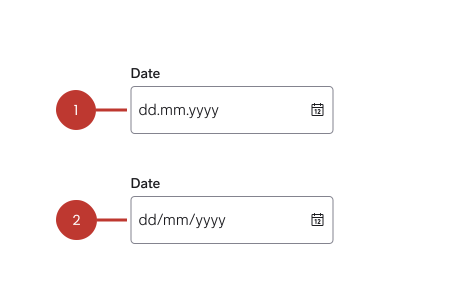
1. Norwegain formating: Uses a . to differentiate between day, month, and year
2. English formating: Uses a / to differentiate between day, month, and year
Error states
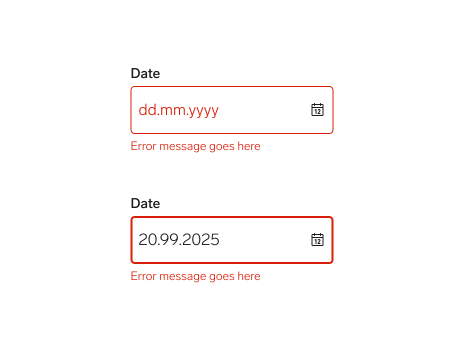
Use when the required field for a text input in the date picker component has not been filled in or if the value entered is invalid. It can also be triggered due to a system error. This state requires a user response before data can be submitted or saved.
Questions?
Feel free to ask any questions on usage in the Warp DS Slack channel: #warp-design-system