
Text area - Usage
A text area allows users to input extended text content that covers multiple lines.
ElementsreleasediOSreleasedReactreleasedVuereleased
Guidelines
When to use
- For detailed or open-ended input, like comments, feedback, descriptions, or messages.
When not to use
- For short input: Use Text field instead.
Behaviour
- Placeholder text is shown when the field is empty.
- Height can be set to auto-grow with content or have a fixed height with scrolling inside.
- Can be manually resized using the resize handle.
- Error state overrides help text.
- Optional tooltip appears on hover/focus of the info icon.
- Read-only disables keyboard input but keeps visual clarity.
- Field supports keyboard navigation.
Interaction
Text areas support keyboard and pointer interaction across platforms. Users can focus the field via tab or click, enter and edit text, and navigate using arrow keys.
The Info tooltip must be keyboard accessible and support the focus state.
The resize handle can be used with pointer interaction to change the text area content view.
Content guidelines
- Use a input label to clearly describe the purpose of the input, don’t rely on placeholder alone.
- Keep input label text short and concise.
- Use Hint (placeholder) text to provide brief instructions for the expected input. Since placeholder disappear when users start typing, avoid adding critical information.
- Use the help text area for any examples or formatting hints, so that it's visible after the user enters text in the input area. Only use this where clarification is required, and try to avoid overuse.
- Error text should be short, clear, and solution focused.
Visit our Language Specialists Text input guidance and best practices to ensure clear, consistent communication in all text inputs.
States
Default
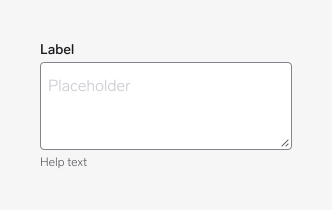
Empty area with placeholder.
Hover
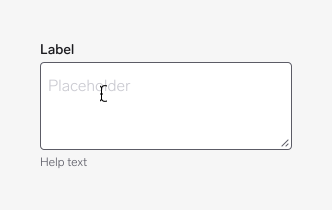
Area border highlights on mouse hover.
Active
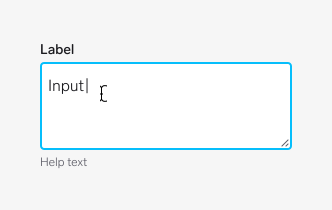
Area is focused and ready for user input.
Filled
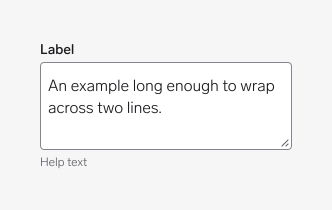
Area contains user’s input.
Error
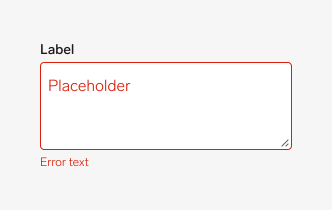
Failed input validation. It shows red border and actionable message below (help text).
Error hover
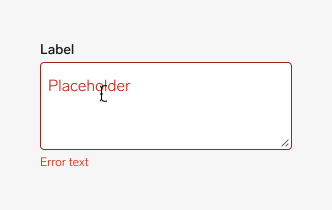
Errored area border highlights on mouse hover.
Error active
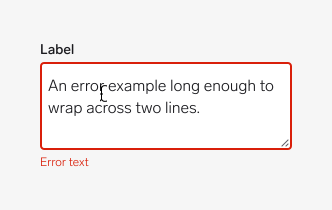
Area is focused but still in error state.
Disabled
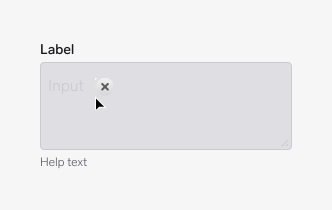
Area cannot be interacted with, grayed out out visually.
Read-only
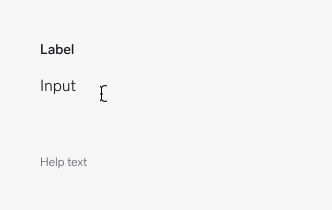
Input is visible but not editable.
Questions?
Feel free to ask any questions on usage in the Warp DS Slack channel: #warp-design-system