
Select - Usage
A select is a form input component that lets users choose one option from a predefined list.
AndroidreleasedElementsreleasediOSreleasedReactreleasedVuereleased
Guidelines
When to use
- When you need to let users choose one or more options from a predefined list, typically by triggering a native or custom dropdown.
- When you want to standardize input and reduce errors from free text.
- When you need to reflect selection clearly in forms, filters, or configuration flows.
When not to use
- If users need to enter custom values: use Text area component.
- If users need to select multiple values: use Checkbox component.
Behavior
- Placeholder text is shown when the field is empty.
- Clicking or pressing the select field opens a list of options.
- Dropdown icon is always present to indicate interactivity.
- Error state overrides help text.
- Optional tooltip appears on hover/focus of info icon.
- Read-only disables interactions, but keeps visual clarity.
- Select supports keyboard navigation.
Interaction
Select supports full keyboard and pointer interaction across platforms. Users can focus the field via tab or click, open and navigate the dropdown using arrow keys, and select an option with Enter or click.
All interactive elements inside the Select, such as the dropdown icon, optional tooltip, or action icons, must be keyboard-accessible and support focus states.
Content guidelines
- Use a select label to clearly describe the purpose of the input, don’t rely on placeholder alone.
- Keep select label text short and concise.
- Use placeholder text to provide brief instructions for the expected select. Since placeholders disappear once a value is chosen, avoid placing critical guidance there.
- Use help text for short instructions, clarification, or consequences of the choice, keep it visible and concise.
- Error messages should be short, specific, and action-oriented.
States
Default
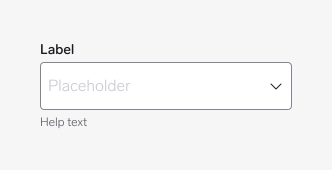
Empty select with placeholder.
Hover
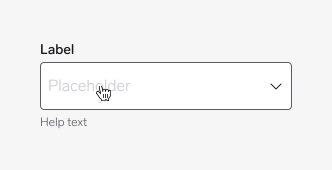
Select border highlights on mouse hover.
Active
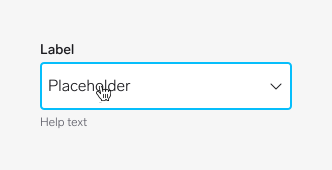
Select is focused and ready for text input.
Filled
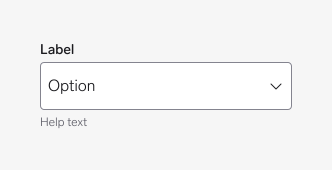
Select contains user selection.
Disabled
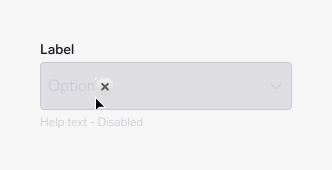
Select cannot be interacted with, grayed out visually.
Error
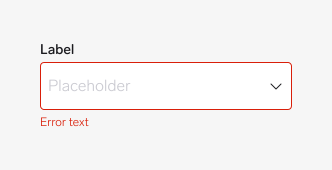
Validation failed — shows red border and message below (help text).
Error active
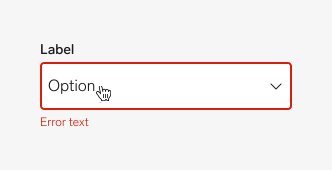
Select is focused but still in error state.
Read Only
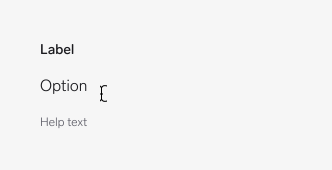
Content is visible but not selectable.
Questions?
Feel free to ask any questions on usage in the Warp DS Slack channel: #warp-design-system