
Link - Usage
Link component to use when creating links that look like buttons.
Best practices / usage guidelines
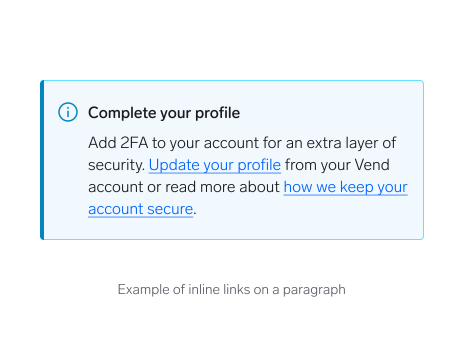
- Always underline inline links to help users easily identify the interactive portion of the text.
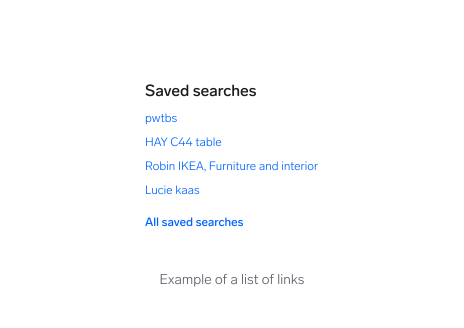
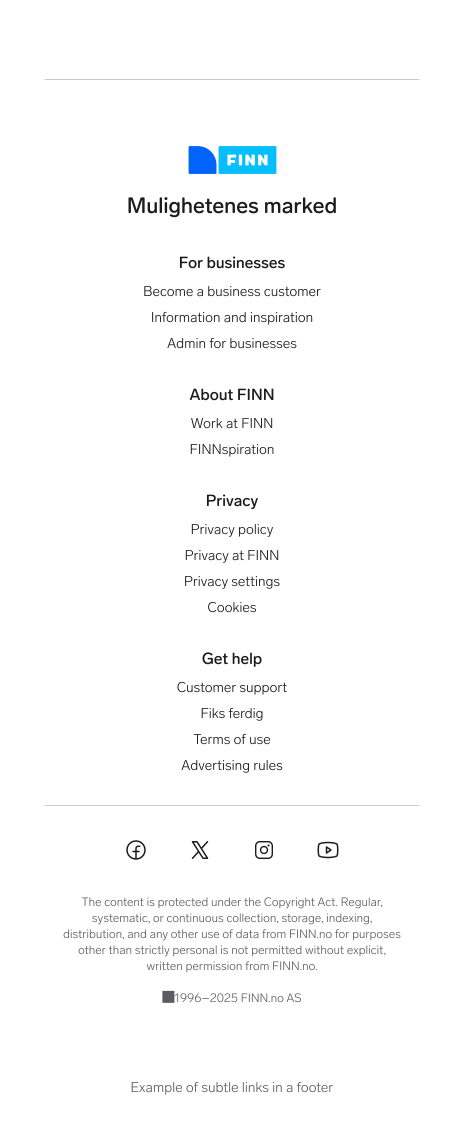
- When using standalone links within a list, underlining isn’t required—as long as it’s visually obvious that the items are links (e.g., by grouping them under a clear heading or using consistent link styling).
- Links offer a lightweight navigation method, but like other interactive elements, overusing them can clutter the page and hinder users from identifying their next steps. This is particularly important with inline links, which should be used sparingly to maintain readability and reduce cognitive load.
- Links should be concise and not exceed more than a few words.
- Do not hyperlink the full stop in a sentence.
- An icon can be added to the link when it enhances clarity about the destination (e.g. indicating that the link opens an external site or downloads a file. Do not underline the icon to signal interaction.
- In web development, it’s possible to style links to look like buttons. However, we do not recommend intentionally using links styled as buttons.
When to use
Use links when you want users to:
- Navigate to a different page within the application.
- Navigate to an entirely different site.
- Jump to a section or element on a page (anchor link).
- Link to emails or phone numbers.
When not to use
- Do not use links for actions that will change data or manipulate how it is displayed, change a state, or trigger an action. Instead, use Buttons to guide users to specific actions.
- Do not use disabled links.
- Do not use links without destination.
Behavior
- Supports internal and external links.
- Supports different interactive states to signal interactivity.
- Links receive Warp’s global focus indicator styling when navigating with a keyboard.
Interaction
States
| State | Web | Native |
|---|---|---|
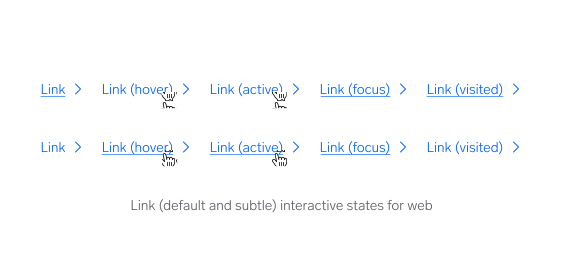
| Default | Default colour with optional underline based on use case. | No underline; styled with default color. |
| Hover | Pointer cursor appears and text link underline toggles depending on use case. | Pointer cursor appears and underline disappear to indicate interactivity. |
| Focus | Warp focus indicator appears and text link underline toggles depending on use case. | System-native focus indicator (if applicable). |
| Active | Maintains Hover state behavior. | Maintains Hover state behavior. Haptic feedback (if applicable). |
| Visited | Same as Default state behavior. | N/A |
| Disabled | N/A | N/A |
Mouse
Users can open a link by clicking anywhere on the link text.
Keyboard
Users can open a link by pressing Enter while the link has focus. For additional keyboard interactions, see the Accessibility section.
Underline behavior
On web platforms, the underline behavior is based on the default styling configuration:
- If shown by default, the underline is removed on Hover and Active states for interaction contrast.
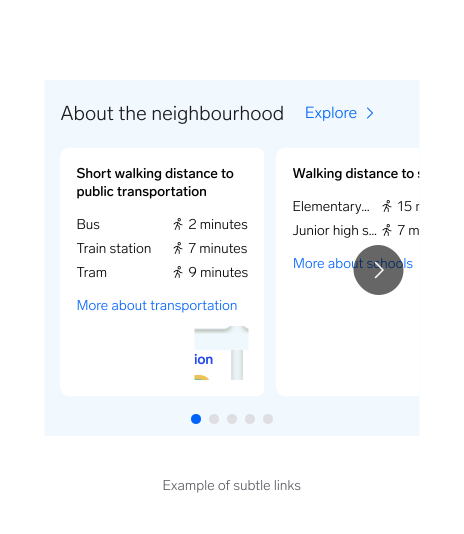
- If not shown by default (subtle), the underline appears on Hover and Active states to signal interaction.
On native platforms (iOS, Android, desktop apps):
- Underlines are typically not shown for links by default.
- Interactivity is communicated via color, touch feedback, and sometimes icons.
- This aligns with native platform conventions and avoids introducing unfamiliar patterns.
Placement
Inline links usually sit within a sentence or paragraph, while standalone links can sit on their own, separated from other text. Consider reducing the number of inline links in a single sentence to simplify the message.
Content guidelines
“Hyperlinks are the magical portals of the internet that teleport you from one website to another with a simple click.” Read more about hyperlinks and writing best practices.
Questions?
Feel free to ask any questions on usage in the Warp DS Slack channel: #warp-design-system